
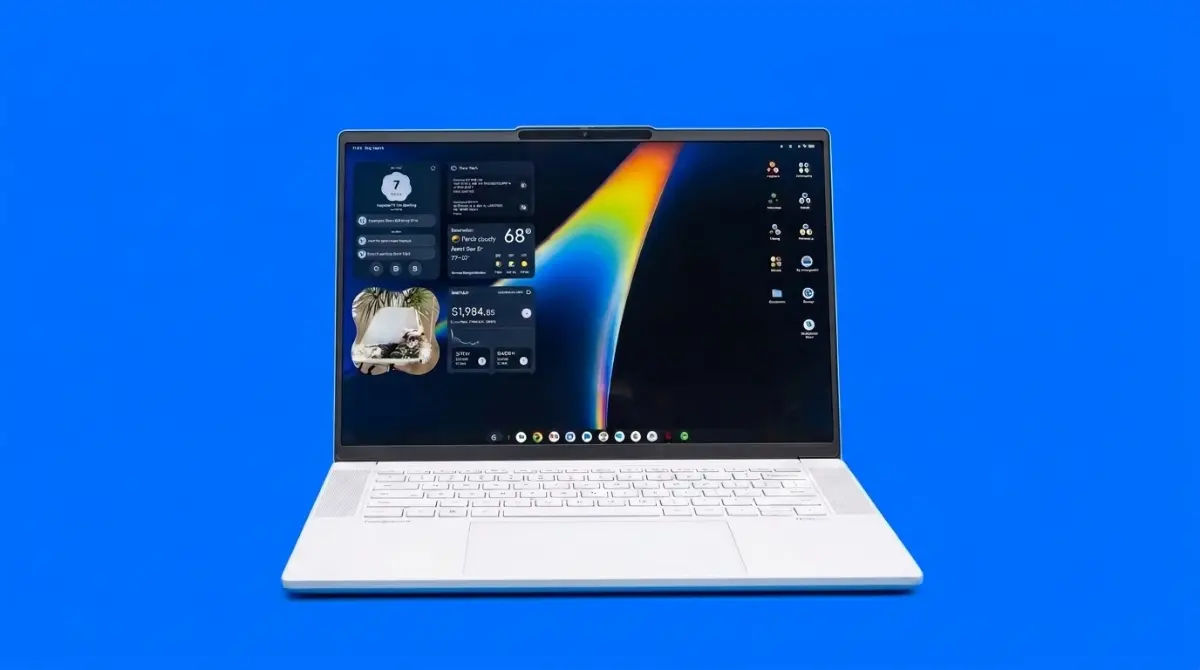


Googlebook OS Review: The Android Desktop Gamble
Googlebook OS ditches ChromeOS containers to run native Android apps on personal computers, pairing Magic Pointer cursor gestures and desktop widgets with an HP chassis to see if mobile habits can conquer desktop work.
Chinedu | 12 Oct. 2026, 3:34 PM · 12 min read

The personal computer is undergoing its biggest structural shakeup since mobile phones took over modern communication. For more than ten years, Google maintained a strict divide across its computing platforms: Android powered pocketable smartphones, while ChromeOS powered affordable student laptops running browser tabs inside cloud containers. That separation grew frustrating as mobile phones became powerful pocket computers. Users wanted the rich touch applications, messaging tools, and media libraries from their phones to run natively on laptop screens with full keyboard and trackpad support. ChromeOS attempted to bridge that gap by running Android applications inside virtualized sandbox containers, but the result was slow, clunky, and prone to system freezes. Google decided to scrap that messy architecture and start fresh. With the arrival of Googlebook OS, running on flagship retail hardware like the HP Googlebook 14, Google unveiled a unified desktop platform built directly on top of the Android system kernel. We examined Google return to premium portable computing in our coverage of Google launching the $899 Googlebook Gemini laptop.
The new operating system represents an open admission that traditional desktop computing paradigms are alien to younger consumers who grew up using touchscreens. A generation raised on mobile operating systems expects applications to launch instantly, system permissions to mirror mobile toggles, and interfaces to adapt between touch taps and mouse clicks without friction. Googlebook OS removes the isolated Linux containers of older Chromebooks, allowing Google Play Store software to run directly on bare metal silicon. The platform introduces a floating application launcher modeled on the Pixel smartphone interface, complete with customizable desktop widgets, unified storage files, and Magic Pointer cursor controls. After testing the system across daily research workflows and writing tasks for two weeks, it is clear that Google constructed a clean operating environment for mobile-first users. Yet rough edges in desktop web browsing and window management prove that translating smartphone software to a fourteen-inch workstation requires deeper engineering polish. How modern hardware balances mobile and desktop demands was evaluated in our guide to the best budget laptops for college students.
The HP Googlebook Fourteen Hardware Foundation
To evaluate Googlebook OS fairly, one must inspect the physical hardware carrying the software. Our testing unit was the HP Googlebook 14, a retail notebook priced at $899 that demonstrates Google strict new hardware certification guidelines. The notebook features an aluminum chassis finished in a clean matte silver that resists fingerprint oils. Weighing in at 1.38kg with a thickness of 14.8mm, the machine feels sturdy and rigid in hand, matching the build quality of premium mid-range Windows notebooks and approaching the structural feel of an Apple MacBook Air.
Opening the display reveals a 14-inch OLED display panel sporting a 16:10 aspect ratio and a crisp resolution of 2,240 by 1,400 pixels. The panel hits 450 nits of peak brightness, delivering rich black levels and vibrant colors that make video editing and document reading comfortable under bright office lights. A standout physical feature is the Glowbar, a thin, multicolored light strip embedded along the bottom front edge of the notebook. The Glowbar illuminates when charging to indicate battery levels, glowing green when full and amber when low. While having a glowing light strip facing forward in a dark lecture hall can feel distracting, Google included an easy toggle in system settings to dim or disable the bar. The chiclet keyboard provides 1.4mm of key travel with a tactile bounce, featuring a dedicated Action key marked with a stylized Google logo that replaces the traditional Caps Lock button. Physical hardware designs across modern portable computers match trends we explored when reviewing the Dell 14s laptop debuting as a lightweight alternative.
Native Android Execution Replaces the Container Era
The defining technical breakthrough of Googlebook OS is the elimination of virtualization containers. On older Chromebooks, clicking an Android application triggered an internal software container running a separate Linux guest environment. This virtualization caused noticeable delays: applications took seconds to load, consumed excessive system memory, and could not access the main laptop file directory directly. If you downloaded a photo in your browser, your photo editing app could not see the image without manual file transfers.
Googlebook OS runs applications natively on the core system kernel, eliminating the virtualization penalty entirely. When you tap an application icon like Slack, Lightroom, or Spotify, the window opens in less than a second. Because the operating system uses a unified file architecture, files saved in the Chrome browser appear instantly inside mobile photo editors and cloud storage drives. You can resize applications into narrow phone-sized columns or expand them into wide, multi-column desktop dashboards. The system manages memory intelligently: background applications freeze their execution state without losing unsaved form inputs, allowing an eight-gigabyte hardware configuration to feel responsive even when twenty applications remain open. How software teams build lightweight native environments mirrors developments we tracked when Framework restructured laptop memory pricing and components.
The Desktop Home Screen and Phone Widget Migration
For longtime personal computer users, the Googlebook OS desktop feels both familiar and delightfully strange. The bottom of the screen houses a persistent shelf holding pinned applications, open tasks, system time, and quick settings toggles. Clicking the Action key or tapping the corner launcher brings up a floating search menu identical to the Pixel Launcher on Google smartphones, searching local applications, web bookmarks, and cloud drive files in real time.
The standout visual addition is native desktop widgets. For the first time on a Google desktop platform, users can pull interactive widgets directly out of their mobile applications and pin them anywhere on the desktop canvas. We pinned our Google Keep project checklist, a Spotify media controller, and a live weather radar directly to our home screen. Because these widgets pull data natively from mobile applications, they update in real time without opening full browser windows. Tapping a hot corner on the trackpad reveals the Up Next widget, which aggregates calendar appointments, flight boarding passes, and unread priority emails into a single glanceable column. The desktop feels alive and customized, avoiding the static wall of tiny shortcut icons that clutters traditional Windows screens. Developing fluid interface designs across consumer platforms was explored in our analysis of Google blending Material 3 design frameworks across mobile systems.
Magic Pointer and Contextual Cursor Actions
Rather than treating the mouse cursor as a dumb pointing stick, Google turned the cursor into an interactive assistant known as Magic Pointer. By shaking the mouse back and forth or clicking a persistent corner icon, the cursor expands into a glowing circle that reads whatever text or media sits beneath the pointer. The tool functions like a localized version of Circle to Search, bringing visual intelligence to the desktop screen.
The daily utility of Magic Pointer is genuinely impressive. If you are reading an email mentioning a dinner reservation for next Tuesday, circling the sentence with Magic Pointer prompts the system to extract the date, venue, and time, offering a single-click button to add the event to Google Calendar. If you hover over an unformatted shipping tracking code inside a chat thread, the system identifies the carrier and displays package status in a floating pop-up card without opening a new browser tab. In foreign-language articles, circling a paragraph provides instant inline translation while preserving text formatting. Because these operations execute on the laptop local neural processing unit, recommendations appear in milliseconds without sending user screen data to remote servers. The push toward local intelligence features across personal computers mirrors changes we followed when Microsoft integrated hybrid reasoning tools into Windows 11.
Web Browsing Friction and the Chrome 1.0 Problem
While native Android application execution is a massive win, desktop web browsing on Googlebook OS reveals surprising rough edges. The system ships with an updated build of Google Chrome built specifically for the new platform architecture. For basic web tasks like checking email, reading news, and streaming video, the browser is fast and fluid, rendering complex web pages without stutter.
The problem arises when power users expect desktop Chrome behavior. Decades of personal computing have built deep muscle memory around desktop browser shortcuts, tab manipulation, and third-party extension ecosystems. On Googlebook OS, Chrome still behaves like an expanded tablet browser in several annoying ways. Tab management lacks the drag-and-drop flexibility found on macOS and Windows: dragging a tab out of an active window to create a new split view frequently fails or drops the tab back into the original row. Furthermore, several specialized enterprise extensions and macro text expanders that professional writers rely on fail to install from the Chrome Web Store, restricted by mobile security sandbox policies. For an operating system carrying Google name, any regression in the Chrome browsing experience is jarring. Improving local file handling and text editing tools matches software updates we documented when Google Docs added native markdown file formatting.
Window Management and Touchpad Navigation Realities
Managing multiple open windows on a fourteen-inch screen requires fast, intuitive gestures. Googlebook OS borrows heavily from mobile navigation: swiping three fingers upward on the glass trackpad zooms out into a Recents overview, displaying all open application windows in a clean horizontal grid. Tapping any card brings that application to the foreground, while flicking a card upward closes the task immediately.
Window snapping operates through intuitive snap zones. Dragging a window to the left or right edge of the screen snaps it neatly to occupy exactly fifty percent of the display, presenting an open selector on the opposite side to pick a companion app. You can also drag windows to corners to arrange a four-way quadrant layout. However, a persistent annoyance surfaces when selecting text fields inside Android applications. Clicking into a search bar or text form using the trackpad occasionally fails to activate the typing cursor, forcing the user to reach out and tap the physical touchscreen to register the cursor location. While having touchscreen support on a laptop is wonderful, an operating system must never force a user to lift their hands from the keyboard to perform basic data entry. Interface responsiveness and system speed optimizations across modern devices were examined in our review of Apple optimizing performance across thirty core areas.
Gaming Performance and the Mobile Library Advantage
Gaming on traditional Chromebooks was practically non-existent outside of cloud streaming services like GeForce NOW. Googlebook OS changes that completely by unlocking the entire Google Play Store gaming catalog. Because the operating system runs native graphics drivers directly against the laptop processor, mobile games run with full hardware acceleration.
Titles like Genshin Impact, Call of Duty: Mobile, and Asphalt 9 run smoothly at full resolution, maintaining stable frame rates without thermal throttling. Google built an automated input mapping utility that converts touch controls into physical keyboard and mouse binds, allowing players to aim with the trackpad and move with standard WASD keys. Connecting a wireless Bluetooth Xbox or PlayStation controller works instantly without installing third-party configuration software. The laptop handles lightweight 3D titles with ease, remaining cool and quiet throughout two-hour gaming sessions. While it cannot replace a dedicated Windows gaming rig running heavy PC titles, having access to millions of mobile games provides immense entertainment value for casual gamers and students.
Battery Life and Daily Endurance Metrics
Battery performance on the HP Googlebook 14 is one of the strongest reasons to consider the platform. Because Android was engineered from its inception to manage tight mobile power budgets, Googlebook OS does not suffer from the aggressive background battery drains that plague Windows laptops. When you close the laptop lid, the system enters an ultra-low-power sleep state that consumes less than two percent of battery capacity over an eight-hour night.
In our standardized battery test, which loops web browsing, document writing, and video playback at 200 nits of screen brightness, the 68Wh internal battery lasted twelve hours and forty-five minutes. That endurance easily covers a full day of university lectures or an international flight without carrying a charging brick. When you do need to recharge, the included 65W USB-C fast charger tops the battery from zero to eighty percent in under fifty minutes. Using universal USB-C Power Delivery means you can charge the laptop with the same wall plug you use for your phone and headphones. Battery optimization and hardware efficiency trends were analyzed in our report on Samsung introducing high-capacity battery hardware.
Software Updates and the Centralized Control Policy
A commendable decision made by Google leadership is retaining strict centralized control over software updates. In the Android smartphone world, operating system updates are notoriously fragmented, with hardware makers delaying security patches and major feature releases for months. On Googlebook OS, Google controls the update pipeline directly, just as it did with ChromeOS.
Every Googlebook, regardless of whether it is manufactured by HP, Acer, Asus, or Lenovo, receives system updates straight from Google servers on the same day. Google is guaranteeing seven years of guaranteed operating system updates and monthly security patches for certified hardware, matching the industry-leading support window offered on Pixel smartphones. Furthermore, hardware makers are forbidden from cluttering the operating system with third-party software bloat; manufacturer software is restricted to a single preloaded support application containing warranty details and hardware diagnostics. Centralized software delivery and enterprise management match cloud developments we tracked when Google Cloud launched universal workspace tools.
The Long Term Verdict on Google Desktop Ambition
Googlebook OS is the most convincing desktop operating system Google has ever created. By ditching slow virtualization containers and embracing native Android execution, Google built a platform that feels modern, fast, and remarkably intuitive for anyone who uses an Android smartphone. The combination of native widgets, Magic Pointer intelligence, excellent battery life, and universal mobile app access gives the platform a distinct identity that sets it apart from Windows and macOS.
Yet whether Googlebook OS succeeds over the long haul will depend entirely on Google corporate commitment. The tech giant has an unfortunate history of launching ambitious hardware and software platforms only to abandon them after three years when executive priorities shift. If Google continues polishing window management, brings desktop Chrome to complete feature parity, and fixes text selection quirks, Googlebook OS could establish itself as the premier personal computing platform for the smartphone generation. For everyday users who spend their digital lives inside web apps, messaging tools, and media players, the post-phone computer has finally arrived, and it works remarkably well.
Read More on TechRobust:
Chinedu
 LinkedIn
Chinedu
Expertise:Consumer Tech Reviews, Comparative Analysis (Versus Testing), Product Benchmarking, Technical Tutorials, Consumer Buying Advice
Award:TechRobust Reviewer of the Year 2025
Chinedu serves as Editor-at-Large overseeing TechRobust’s buyer guidance and utility verticals. He specializes in methodical product teardowns, head-to-head showdowns, curated buyer lists, and deep-dive instructional guides, delivering actionable, evidence-driven verdicts that help readers make informed hardware and software decisions.